Install SilentInk
About 45 minutes, most of it waiting for downloads. You need your BOOX, your Mac and a USB-C cable. Nothing is rooted, and everything can be taken off again.
Before you start
Requirements
| What | Exactly | What it is for |
|---|---|---|
| BOOX Go 10.3 | Model Go103 with firmware 4.2 (build 2026-05-19_22-31_4.2-rel_0519, Android 12). Check it in Settings → About tablet: Model and Build number. |
Everything. SilentInk is built and tested on exactly this device and firmware. On other firmware the installer stops before changing anything. |
| A Mac with Apple Silicon | M1 or newer, macOS 14 Sonoma or later, about 3 GB free, signed in and awake when you want transcripts or answers. | The bridge: transcribing recordings with Whisper (an hour of speech in a few minutes) and running Claude Code. Intel Macs are not supported. |
| Homebrew | From brew.sh. | Installs Whisper (whisper-cpp) and Android's adb, which talks to the BOOX over USB. |
| Tailscale | A free personal account at tailscale.com, the app on the Mac and on the BOOX, both signed in to the same account. | A private network between your BOOX and your Mac, at home and away. The BOOX finds the Mac by its Tailscale name. |
| Claude | A Claude Pro or Max subscription and Claude Code on the Mac, signed in with that subscription. | Summaries of recordings, Ask, and reading your handwritten tasks. It runs on your subscription — no API key and no extra charges. |
| SilentList | SilentList on the same Mac (and on your iPhone, if you want the tasks there too). | Your handwritten To-Do tasks as text, in a list called Boox, ticked on either side. |
| iCloud | The Mac signed in to iCloud. Only for the Send to BOOX shortcut — everything else works without it. | Sending a PDF to the BOOX from the Share menu on your iPhone, iPad or Mac. |
| A USB-C cable | One that carries data, not only power. | Installing. Afterwards the BOOX talks to the Mac over the network only. |
Download SilentInk 0.1 One zip (1.5 MB) with the BOOX app, the bridge, what makes the Send to BOOX shortcut, the install and uninstall scripts and the licenses of the libraries inside. SHA-256
Part 1 · on the Mac
Prepare the Mac
-
Install Tailscale and sign in
- Download Tailscale for macOS from tailscale.com/download and open it.
- Sign in, or create a free account.
- In the Tailscale admin console, make sure MagicDNS is on (it is by default).
- Find your Mac's Tailscale name: click the Tailscale icon in the menu bar; it looks like
my-mac.tail1234.ts.net. You will need it twice.
-
Install Claude Code and sign in
In Terminal:
curl -fsSL https://claude.ai/install.sh | bash
claude
Choose to sign in with your Claude account (Pro or Max), finish in the browser, then quit Claude Code with /exit.
Stay signed in to the Mac itself. Claude Code keeps its sign-in in your macOS keychain, which is only open while you are logged in to the Mac. Locking the screen is fine; logging out is not. -
Install the bridge
Unzip the SilentInk download, then in Terminal, in that folder:
brew install android-platform-tools
./install-bridge.sh
The installer checks the Mac, Tailscale and Claude Code, installs Whisper and ffmpeg with Homebrew if they are missing, downloads the Whisper model (1.6 GB, checked against its checksum), starts the bridge as a login item and prints its address and what comes next:
bridge: running at http://my-mac.tail1234.ts.net:8787
bridge: Whisper ok  ·  Claude Code found
bridge: SilentList: open -a SilentList --args -booxBridge http://my-mac.tail1234.ts.net:8787
bridge: the BOOX: ./install-boox.sh fills in my-mac.tail1234.ts.net for you
bridge: Send to BOOX for iPhone, iPad and Mac: open "/Users/you/Library/Application Support/boox-bridge/Send to BOOX.shortcut", click Add Shortcut
If it stops, it says why and what to do — for example that Tailscale is not connected. Run it again any time; it updates the bridge in place.
-
Add the Send to BOOX shortcut
The installer made a shortcut that sends PDFs to the BOOX from the Share menu, set up for this Mac's bridge.
- Open the file the installer named —
Send to BOOX.shortcutin~/Library/Application Support/boox-bridge— and click Add Shortcut. iCloud puts it on your iPhone and iPad too. - To use it, share a PDF and choose Send to BOOX: in Mail, tap a PDF attachment, then Share; it works the same from Files and Safari, and on the Mac from Finder's Quick Actions. The PDF appears on the BOOX in Documents → To read the next time Home is on screen.
- The first time, it asks for permission to connect to your Mac: tap Allow.
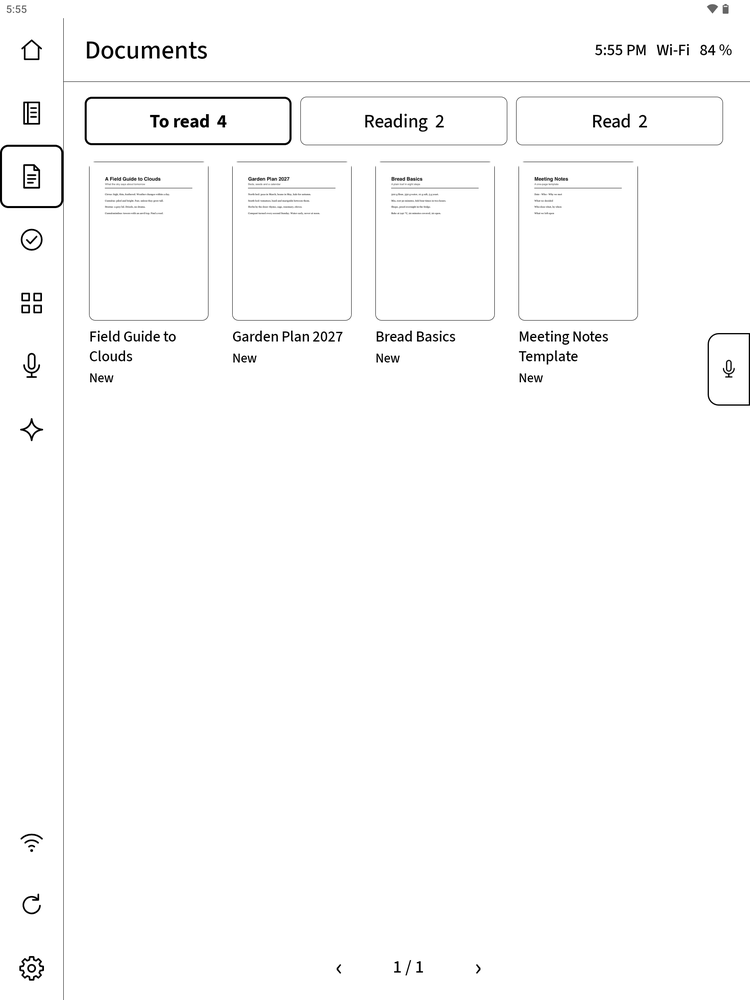
A shared PDF waits in Documents → To read. The phone or Mac you share from must be on Tailscale. Off it, the shortcut says it could not connect and nothing is kept for later — share it again once Tailscale is on.
If the installer said
the Send to BOOX shortcut could not be signed (is this Mac signed in to iCloud?), sign the Mac in to iCloud and run./install-bridge.shagain. Everything else works without it. - Open the file the installer named —
-
Connect SilentList to the bridge
- Install SilentList and open it once.
- Quit it, then start it once with the bridge's address (your Mac's Tailscale name from step 1):
open -a SilentList --args -booxBridge http://my-mac.tail1234.ts.net:8787SilentList remembers the address. From now on it fetches the BOOX's tasks every minute into a list called Boox, which it creates the first time.
Part 2 · on the BOOX
Prepare the BOOX and install
-
Turn on USB debugging
- Open Settings and search for Build number (or go to About tablet).
- Tap Build number seven times, until it says you are a developer.
- Search Settings for USB debugging (in System → Developer options) and turn it on.
- Connect the BOOX to the Mac with the USB-C cable. On the BOOX, tap Allow when it asks whether to allow USB debugging from this computer, and tick Always allow.
Check from Terminal; it should list one device:
adb devices -
Install Tailscale on the BOOX and sign in
The BOOX has no Play Store, so the installer fetches the official Tailscale app from pkgs.tailscale.com and installs it over USB:
./install-boox.sh tailscale- Open Tailscale on the BOOX and sign in with the same account as on the Mac.
- In the Tailscale admin console, open the BOOX's menu (…) and choose Disable key expiry. Otherwise the BOOX drops off your network after 180 days.
-
Install SilentInk
./install-boox.shThe installer first checks the model and firmware and stops, changing nothing, if they differ. Then it:
- installs the SilentInk app and makes it the Home screen (the BOOX's own launcher stays installed);
- turns on its accessibility service — the back arrow over other apps (a BOOX has no back button) and the recording tab;
- gives it access to your documents, so it can show Documents, Download and Books, and to the microphone;
- opens Connect to your Mac on the BOOX with this Mac's Tailscale name filled in.
It ends with:
silentink: on the BOOX: "Connect to your Mac" shows my-mac.tail1234.ts.net — tap Test, then Save
silentink: done. What was changed is in …/SilentInk/<serial>/installed.txt; ./uninstall-boox.sh undoes it
On the BOOX, tap Test — it should say the bridge answers — and then Save. The address is only ever saved by your tap. You can change it later from the status in the top right of Recordings or Ask.
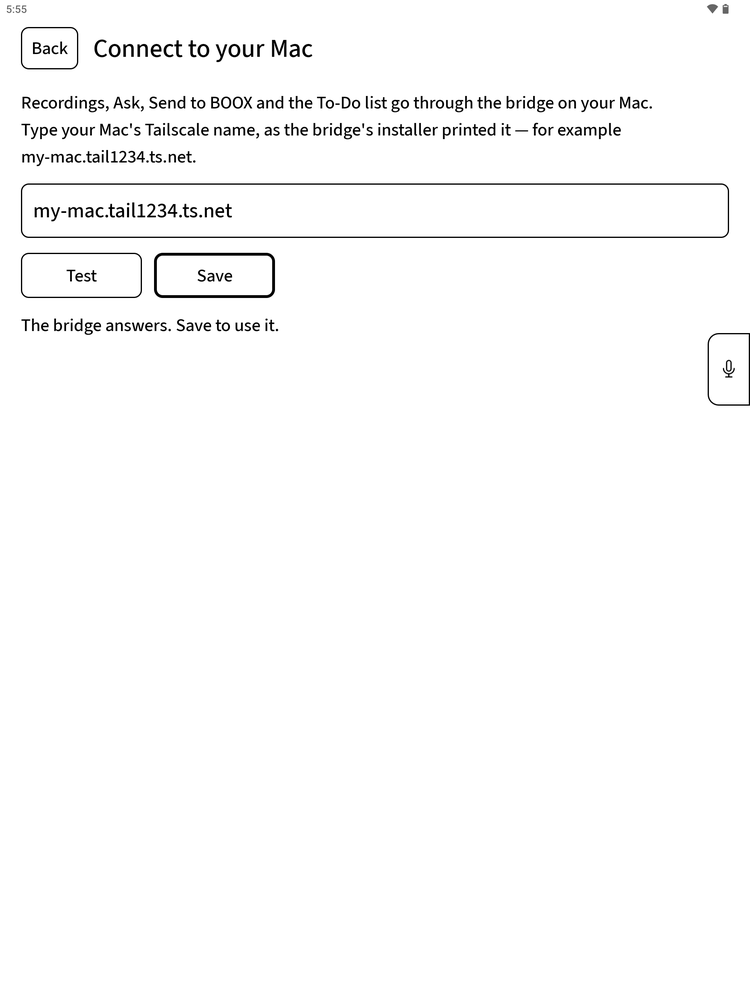
After Test: the bridge answers. Now tap Save. What the installer changed is written down on the Mac, in
~/Library/Application Support/SilentInk, one folder per BOOX; the uninstaller undoes exactly that../install-boox.sh statusshows it.
Part 3
Check that it works
- Home shows Documents, Notebooks and To-Do. Press the BOOX's Home gesture; you come back here.
- Notes: tap + New under Notebooks and write. The ink should follow the pen without delay.
- The bridge: open Recordings from the microphone in the rail. Top right should say the Mac is reachable.
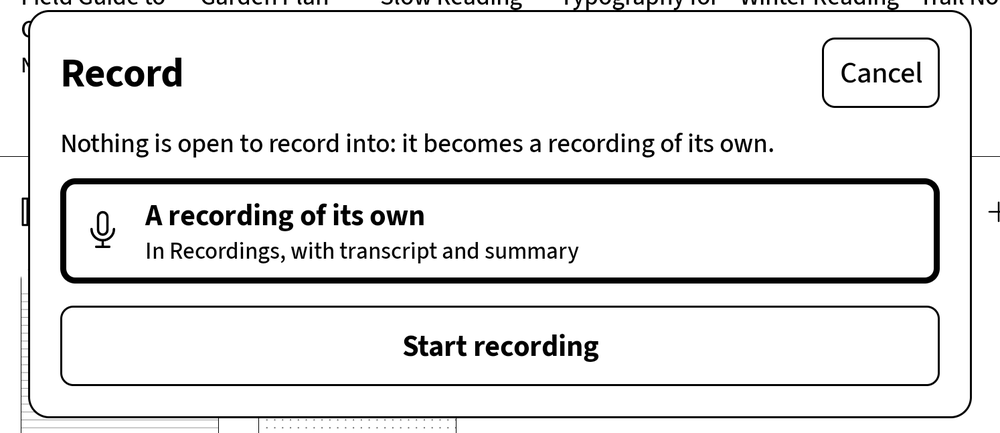
- Record: in your notebook, tap the microphone tab on the right edge, then Start recording. Speak for half a minute, stop, and wait for the transcript in Recordings.
- Ask: open Ask from the rail and type a question.
- To-Do: add a task under To-Do on Home. Within a couple of minutes it appears in SilentList in the list Boox.
- Send to BOOX: on your iPhone, share a PDF to Send to BOOX. It appears in Documents → To read when Home is on screen.
Optional
Quiet the BOOX
A BOOX comes with apps and services you may never use. The installer can turn them off, one group at a time, with a check after each:
./install-boox.sh quiet --list       # what each group contains
./install-boox.sh quiet shop small   # turn off the groups you choose
The groups: shop (BOOX's store and assistant), small (mail, music, voice recorder, clock, calculator, gallery, dictionary, transfer), google-extras, keyboards (BOOX's own keyboards) and onyx-services (the floating navigation ball, which SilentInk's back arrow replaces, and BOOX sync).
Nothing is uninstalled and the system is not modified: the apps are only disabled, and ./uninstall-boox.sh turns every one of them back on. Google Play services cannot be turned off without root; the firmware turns them back on at every start.
Taking it off
Uninstall and restore the BOOX
-
Keep your notes
Uninstalling deletes the app's own data: notebooks, ink on PDFs, recordings and questions. Export what you want to keep first — in each notebook, Export writes a PDF to
Documents/SilentInk, which stays on the BOOX. Your PDFs themselves are never changed and stay where they are. -
Restore the BOOX
Connect the BOOX by USB and run:
./uninstall-boox.shIt asks you to type yes, then turns back on every app the quiet step turned off, gives Home back to the launcher that had it before, takes SilentInk out of the accessibility services (leaving any others as they were), removes the app, and checks that the BOOX is as it was before you installed. Tailscale stays; remove it like any other app if you want.
-
Remove the bridge from the Mac
./uninstall-bridge.shIt stops the bridge, removes its login item, the Whisper model, its log and anything still waiting in its queue. Homebrew's whisper-cpp and ffmpeg stay. To stop SilentList fetching from the bridge, start it once with an empty address:
open -a SilentList --args -booxBridge "".The Send to BOOX shortcut stays in Shortcuts on your devices; delete it there (touch and hold it, then Delete).
Help
When something does not work
The installer says the firmware differs
SilentInk relies on things that change between firmware versions — the pen library and the apps the quiet step knows. Nothing has been changed. Wait for a release that supports your firmware.
Recordings wait for the Mac
The Mac is asleep, logged out, or not on Tailscale. They go by themselves once it is back. Check the Tailscale app on both devices shows them connected.
Send to BOOX says it could not connect
The iPhone, iPad or Mac you shared from is not on Tailscale, or the bridge's Mac is asleep. Nothing was kept: turn Tailscale on and share the PDF again.
Summaries or Ask say Claude is not signed in
Log in to the Mac (not only unlock it) and run claude once in Terminal to sign in again.
The back arrow or the recording tab is gone
Android switches an accessibility service off when its app is force-stopped. Turn SilentInk back on in Settings → Accessibility, or run ./install-boox.sh again.
The pen draws nothing
Restart the BOOX. If it persists, the firmware may have changed under SilentInk after an update.